Exploring stops
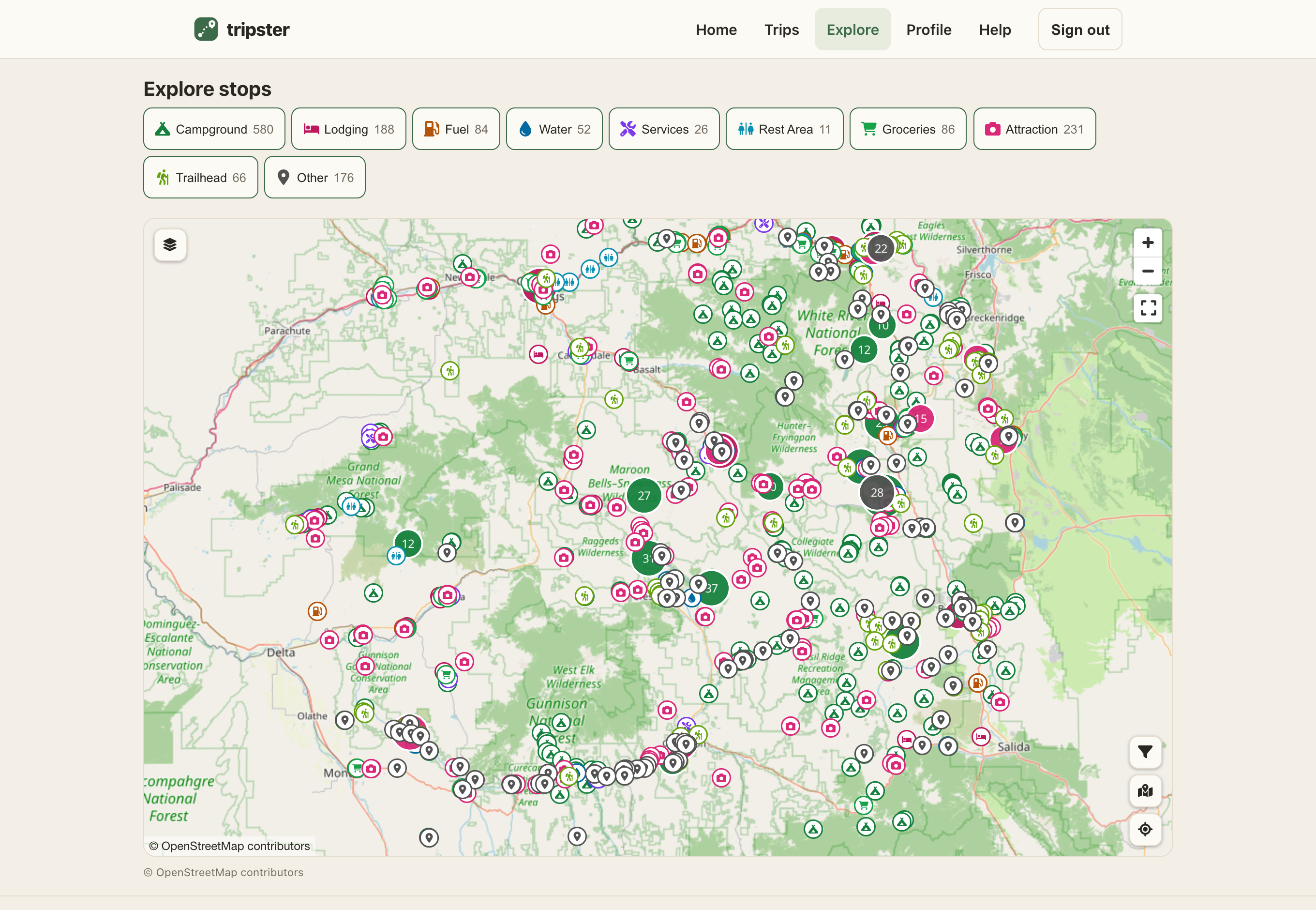
Explore is a free-roam map of the stops tripster knows about — campgrounds, fuel, water, food and more — around anywhere you like. No trip required; it's for scoping out an area.
Find stops on the map
- Open Explore.
- Move the map to the area you care about — pan and zoom, or tap My location to jump to where you are.
- Zoom in to roughly a region or state, then tap Show stops here. tripster loads the stops within the current view (it searches what you're looking at, not the whole country). Too far out and it'll nudge you to zoom in first — a country-wide view has too many stops to show at once.
- Narrow things down with the type chips — fuel, water, camping, and so on. Each shows how many of that type are in view; with none selected you see everything.
- Tap a pin for its details, then Directions to open it in your phone's maps app.
If nothing shows up
An empty result just means there's nothing of that type in the current view — pan to a different area (or zoom in a little) and tap Show stops here again. The small print under the map credits the data sources for what you're seeing.